01
02
03
04
05
Download, Share & Export Your Answers
This section covers some of the things you can do with the answers that you receive from Alexi.
Here’s a short video walking you through it!
After Alexi generates a response, you have a few options:
1. Download the answer in PDF or Word format.
Example: Download a drafted agreement section to circulate to your client.
Example: Download a research memo summary as a PDF for your file.
Example: Download a file summary as an internal memo to your team.
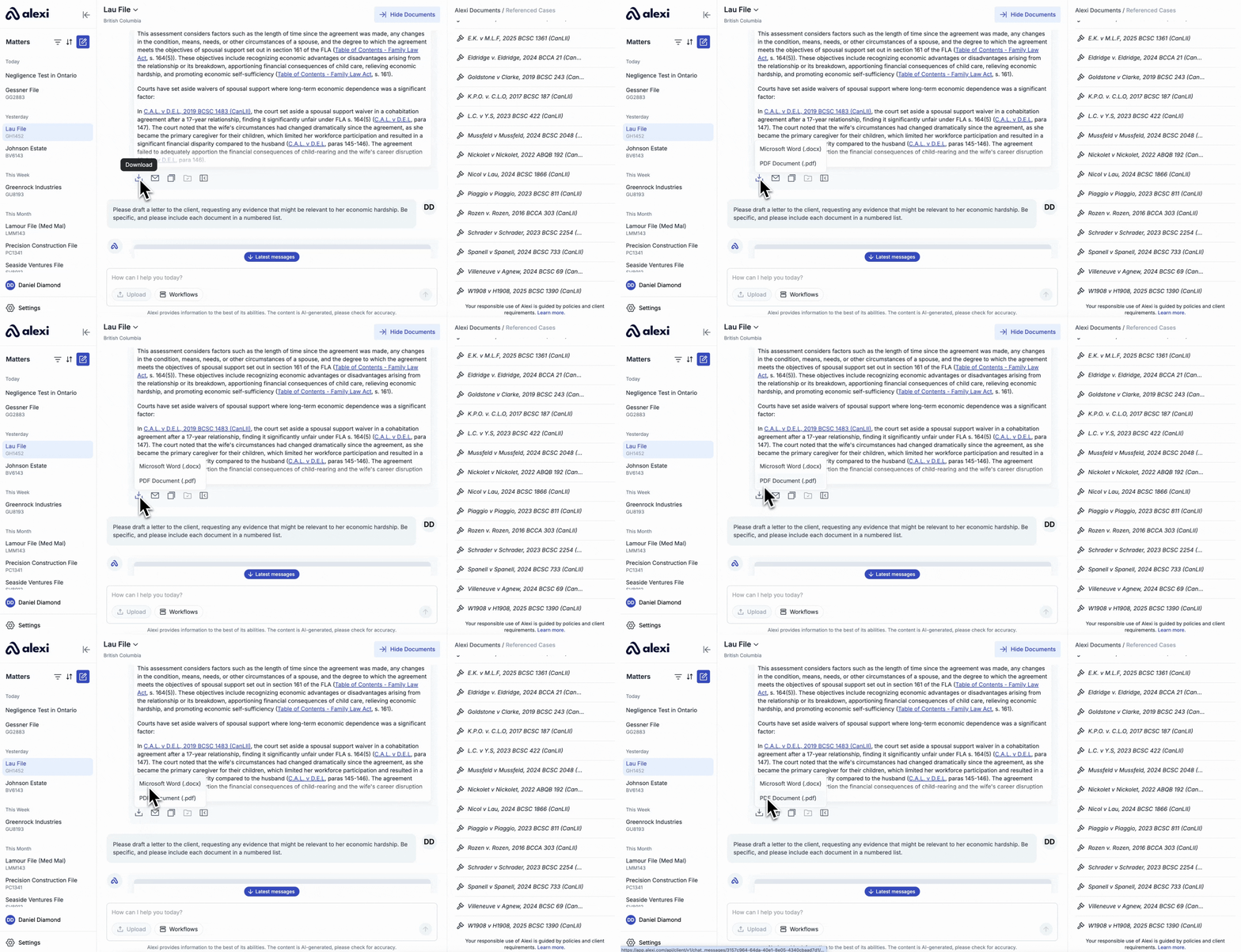
2. Email to Yourself.
Send the answer directly to your account’s email.
Example: Email a clause draft to review later while offline.
Example: Send a compliance checklist to yourself to forward to a client.
Example: Email a list of arguments to yourself to forward internally.
3. Copy the answer to your clipboard.
Example: Copy a drafted clause into your Word document.
Example: Copy a document summary into an internal email for your team.
Example: Copy a research answer into a motion you’re working on.

4. Save to Alexi Documents: Store the response in your matter’s centralized document folder.
Example: Collect multiple drafted clauses in one place for an employment agreement.
Example: Keep a record of legal memos connected to a single litigation matter.
Example: Collect multiple file summaries on different issues in a single spot.
DOWNLOADING A COMPLETE MATTER
If you want to download an entire conversation within Alexi, including the full sequence of questions and answers within a Matter, simply follow these 3 easy steps:
- Head over to the left-hand panel, and click the 3 dots next to the matter name.
- Click “Download Chat History” and it will download the entire conversation in PDF format.
- The entire conversation will now be downloaded to your browser as a PDF.